

Copyable Gym Waitlist Rules with Policy Text and Rollout Checklist

Set your waitlist to fill spots by timestamp order, reserve a small allotment for top-tier members, offer each open seat for 10 minutes with one retry to the next person in line, and auto-block anyone who racks up two no-shows. This default keeps classes full, cuts the back-and-forth of manual seat assignment, and gives staff a clear, repeatable process instead of judgment calls during busy hours.
TL;DR:
- A 10-minute offer window with one retry generally balances seat fill rate and member convenience, while shorter windows risk losing last-minute attendees.
- Limiting no-shows to two strikes within 30 days and resetting the count monthly prevents permanent bans over one bad week.
- Capping waitlists at about twice the class size maintains offer relevance and prevents queues from becoming unmanageable.
- Automated notifications should include immediate confirmation, reminders, and major position updates to reduce member anxiety and inquiries.
- Regular review and testing of waitlist rules through pilot classes, A/B testing, and audit logs ensure policies remain aligned with actual demand patterns.
Getfitnessflow
Simplify Your Gym’s Waitlist Management
Fitness Flow brings scheduling, member engagement, billing, and analytics together to help gyms reduce admin work and keep members connected.
Table of Contents
- 1. Core settings every gym waitlist policy needs
- 2. How to roll out new waitlist rules without disrupting members
- 3. Tracking the KPIs that tell you if your rules are working
- 4. Handling reserved seats, multi-location queues, and class series
- 5. What happens when members wait too long for a spot
- 6. Keeping members informed after the first notification
- 7. What gym operators get wrong about waitlist automation
- How Fitness Flow supports the rules in this guide
- FAQ
- Useful resources for setting up your waitlist rules
- Sources
1. Core settings every gym waitlist policy needs
A waitlist policy is really five separate settings working together, and getting any one of them wrong creates either empty seats or frustrated members.

Priority rules decide who gets offered a seat first. Keep that allotment small. If too many seats are carved out for tiered access, the timestamp queue stops moving and regular members stop trusting the waitlist at all.
Auto-offer timing determines how long a freed seat stays open before moving to the next person. A 10-minute window with one retry (another 10 minutes to the next person in line) balances speed against fairness. Shorter windows (5 minutes) fill seats faster but punish members who are mid-workout or driving. Longer windows (20 minutes-plus) leave seats empty during peak hours when demand is highest.
Notification rules matter as much as timing. Push notification first, with SMS as a fallback for members who have it enabled, works better than email alone since email gets checked too slowly to matter. Keep the message short and specific: name the class, time, and exact deadline to respond, not a generic “spot available” ping.
No-show handling should use a strike system rather than an instant ban. Two no-shows within a rolling 30-day window triggers a temporary waitlist block, often a week or two, before privileges reset. Re-credit the class to the member’s pass if your software auto-deducts it on booking; otherwise members get penalized twice.
Waitlist caps prevent a queue from growing so long that offers become meaningless. Capping at roughly double the class size is common, since beyond that point, members near the bottom of the queue are unlikely to get in anyway.
Pro Tip: Set your no-show strike window to reset monthly, not permanently. A member who had one bad week shouldn’t carry a block indefinitely.
- Priority: timestamp order with a 10 to 20% tiered-member allotment
- Auto-offer: 10-minute window, one retry to the next person in line
- No-shows: two strikes in 30 days triggers a temporary block
- Caps: roughly 2x class size to keep offers meaningful
2. How to roll out new waitlist rules without disrupting members
Changing waitlist settings mid-season is where most gyms create confusion, so test before you flip the switch for everyone.
- Audit current settings first. Pull up your admin console and document the existing priority logic, offer window, and no-show policy before changing anything, so you have a baseline to roll back to.
- Build the new rule in a sandbox or test class. Most scheduling platforms let you apply a rule to a single class template without affecting the rest of your schedule.
- Pilot on one or two classes for one to two weeks. Pick a mid-demand class, not your most popular one, so a misconfigured setting does not affect your most engaged members.
- Simulate the full cycle manually. Have a staff member join the waitlist, cancel a booking, and confirm the offer fires correctly, the retry triggers if ignored, and the no-show strike logs properly.
- Check manual override behavior. Front desk staff occasionally need to manually bump someone up (injury, VIP request); confirm the override is logged, not silent.
- Expand to full rollout once the pilot clears two full weeks with no errors.
- Keep a rollback button ready. Save the prior settings as a named template so staff can revert in one click if a rule misfires during a busy week.
Pro Tip: Run your pilot during a normal week, not a holiday or event week, so test results reflect typical demand instead of an outlier.
If something breaks mid-rollout, a short templated message helps: “We’re adjusting how waitlist spots are offered this week. If you were bumped unexpectedly, reply here and we’ll get you sorted.” Sending this proactively, before complaints pile up, saves far more staff time than responding one by one.
3. Tracking the KPIs that tell you if your rules are working
A waitlist rule is only as good as the data proving it works, so build a short dashboard before you forget to check it.
- Fill rate: the percentage of freed seats successfully filled from the waitlist rather than staying empty.
- Time-to-fill: how long, on average, a seat sits open before someone accepts the offer.
- Offer acceptance rate: the share of auto-offers accepted versus ignored or declined.
- No-show rate after auto-offer: whether members who accept late-notice offers actually show up.
- Manual override count: how often staff bypass the automated queue, a signal your rules might be too rigid.
Check these daily during a pilot and weekly once rules are stable. A dashboard card for each metric, refreshed automatically, beats pulling manual reports every time a manager has a question.
Audit trails matter here: store the offer timestamp, the member’s response time, and any manual override with a note explaining why. This record is what resolves a dispute when a member insists they never got notified.
Test variantOffer windowWhat to compare
A
5 minutes
Faster fill rate, higher no-show risk
B
10 minutes
Balanced fill rate and acceptance rate
C
10 minutes
Slower fill rate, fewer frustrated members
Run A/B tests like this for two weeks per variant before deciding. Switching too quickly makes it impossible to tell if a change in fill rate came from the rule or from a random busy week.
4. Handling reserved seats, multi-location queues, and class series
A few edge cases trip up most managers because the default rules do not obviously apply to them.
- Instructor-reserved seats should be excluded from the public waitlist count entirely. Mark them as reserved in the admin console so the queue never offers them, and log any manager override with a reason.
- Cross-location fills (common for multi-site gyms) should only activate when a member’s home location class is full and a sister location has room within a reasonable distance. Prioritize home-location members first, even on the visiting location’s waitlist.
- Series bookings need a clear rule: does one waitlist acceptance cover the full series, or just the single session that opened up? Most gyms default to single-session only, since a waitlist spot that locks someone into eight future weeks feels punitive if they only wanted to try one class.
- Disputes get resolved fastest with automatic evidence logging: timestamp of offer, timestamp of response, and the channel used. A templated reply (“Here’s the exact time you were notified and the response window you had”) ends most arguments quickly.
5. What happens when members wait too long for a spot
A waitlist that never moves is worse than no waitlist at all, so set an expiry rule alongside your fill rules.
A common approach: if a member has not been offered a seat within 14 days, automatically remove them from the queue and send a notification explaining why, with a one-click option to rejoin. This keeps queue data accurate and prevents the count from implying more demand than actually exists.
Long waits also drive membership cancellations, particularly for members who joined specifically for a popular class time that never opens up. Rather than letting this surface as a silent churn risk, flag any member who has been on a waitlist for 14-plus days without an offer as a retention risk in your CRM, and have a staff member reach out proactively. A quick call offering an alternate time slot often resolves the frustration before it turns into a cancellation request.

Avoid auto-canceling a membership for a long wait. That decision should stay with the member, not the software. The software’s job is to surface the risk early enough that staff can intervene, not to make the cancellation decision automatically.
6. Keeping members informed after the first notification
The initial waitlist notification is just the start. Members expect updates as their position changes or as the class date approaches.
A confirmation message when someone joins the waitlist (“You’re #4 for Tuesday’s 6 PM class”) sets expectations immediately. A reminder 24 hours before the class, even if no seat has opened, reduces the number of “did I get in?” messages to the front desk. If a seat opens and is offered, the acceptance confirmation should restate the exact class time and any check-in requirements, since members who accept a last-minute offer are more likely to forget details they’d normally have planned around.
Position-change updates (moving from #4 to #2) are optional but reduce anxiety for members waiting on popular classes. Keep these to major moves rather than every single shift, or the notifications start to feel like noise.
The simplest rule of thumb: every automated message should answer one specific question the member is likely asking at that moment, whether that is “did I get in,” “when exactly,” or “what do I need to bring.” Generic status updates without a clear next step tend to get ignored.
7. What gym operators get wrong about waitlist automation
The biggest misconfiguration we see is treating the waitlist as a set-and-forget feature rather than a policy that needs periodic review. Automated rules cut manual admin dramatically, but only when the underlying settings match actual demand patterns, which shift by season and by class.
Three mistakes show up repeatedly: offer windows set too short for the member base (older or less tech-engaged members need more than 5 minutes to respond), no-show strikes that never reset (permanent blocks breed resentment over a single bad week), and reserved-seat allotments that grow unchecked until the public queue barely moves. Each is a quick fix once a manager actually reviews the fill rate and override reports instead of assuming the rules are working.
— Louis
How Fitness Flow supports the rules in this guide
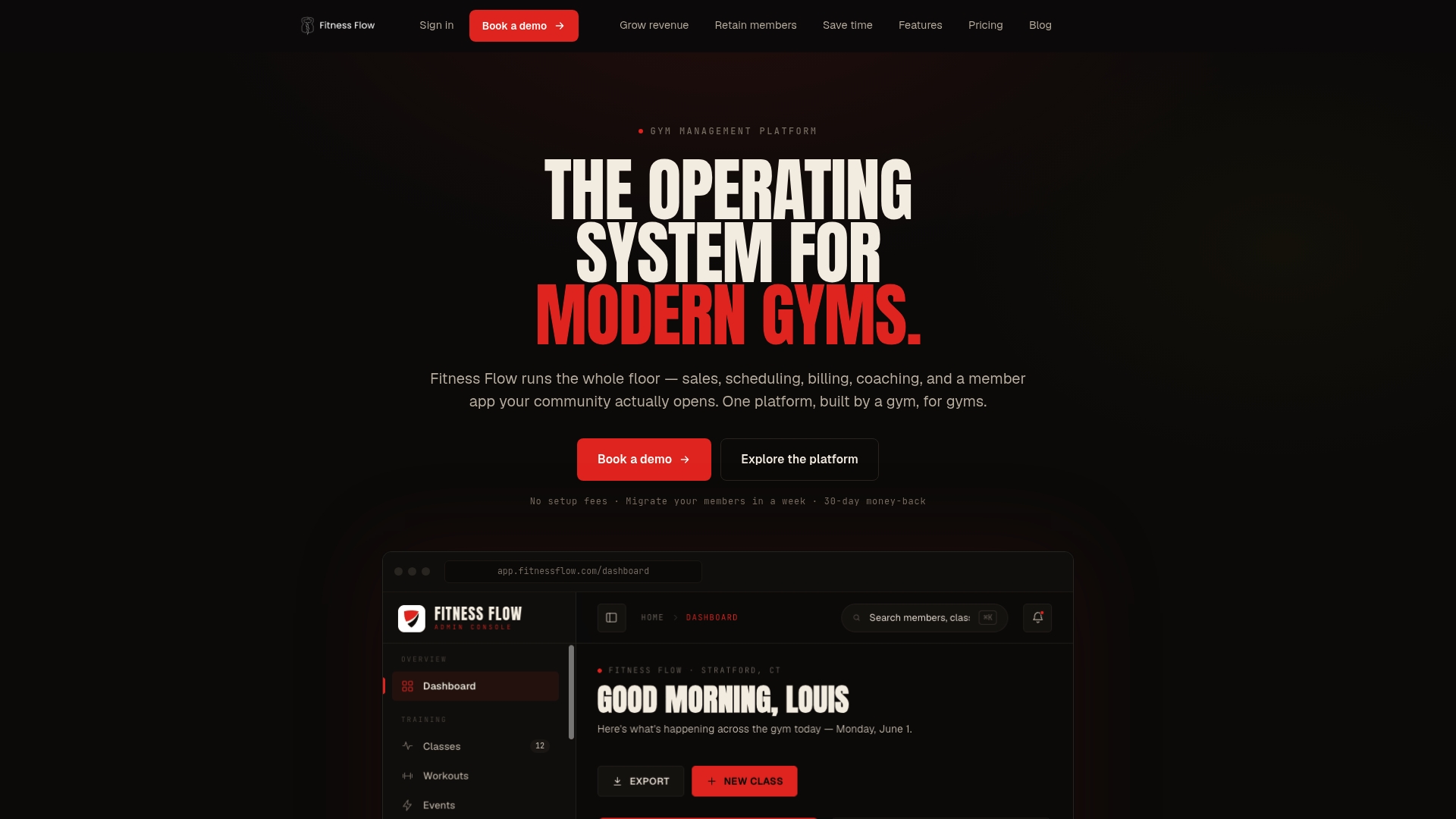
Our platform is built around the exact settings covered above: priority queues with tiered-member overrides, configurable auto-offer windows, notification templates for push, SMS, and email, and audit logs that timestamp every offer and response automatically.
That time back usually goes toward the parts of running a gym that software cannot automate: talking to members, planning programming, and growing the business. If the waitlist policies in this guide sound like what your gym needs, you can explore our Solo, Studio, and Multi-site plans and request a walkthrough to see the settings in action.
- Priority and auto-offer rules configured directly in scheduling admin
- Notification templates for push, SMS, and email built in
- Audit logs tracking every offer, response, and override automatically
FAQ
What is the best default waitlist priority rule for a gym?
Timestamp order, where whoever joins the queue first gets offered the next open seat first, is the simplest and most defensible default.
How long should a gym hold an open seat before offering it to the next person?
A 10-minute offer window with one retry to the next person in line balances speed and fairness well for most class sizes. Shorter windows fill seats faster but risk losing members who are already mid-commute or between activities.
How many no-shows should trigger a waitlist block?
Two no-shows within a rolling 30-day period is a common threshold before applying a temporary block. Resetting the count monthly, rather than permanently, avoids penalizing a member for one difficult week.
Should a waitlist spot cover an entire class series or just one session?
Most gyms default to covering only the single session that became available, not the full series. This avoids locking a member into future weeks they never intended to commit to.
What should happen if a member waits too long without getting a class spot?
Automatically expiring a waitlist entry after around 14 days with no offer keeps queue data accurate and gives the member a clear option to rejoin. Flagging that member as a retention risk for staff follow-up works better than an automatic cancellation.
Useful resources for setting up your waitlist rules
Start with our product and plan overview for scheduling and automation features, or browse the Fitness Flow blog for more on class scheduling and member engagement. For reserved-seat and open-session structuring ideas, this open gym session guide offers adaptable examples.