Calendar Integration for Gyms: How It Works and What to Check

Calendar integration for a gym means your class schedule, appointments and staff shifts show up in the calendars people already use, such as Google Calendar, Outlook and Apple Calendar. The best setups also work in reverse, so a trainer’s dentist appointment blocks their availability and a member’s booking lands on their phone. This guide covers what to connect, how two-way sync behaves, and what to check when events go missing or appear twice.
Getfitnessflow
Simplify Gym Scheduling
Fitness Flow brings scheduling, booking, billing and member engagement together in one gym management platform, reducing the need for multiple software subscriptions.
TL;DR
- Calendar integration pushes bookings, classes and shifts into Google, Outlook or Apple calendars. Two-way sync also pulls outside events back in to block availability.
- Not every connection is two-way. Some calendars, Apple’s in particular, are often one-way, so confirm the direction before you promise anything to staff.
- Most sync problems come from the wrong account, filters set to the wrong appointment types, all-day events, duplicate calendars or plain sync delay.
- Decide who can see and edit which calendars before you connect anything, especially across several locations.
- A gym platform that keeps scheduling, booking, billing and the member app in one place needs fewer calendar workarounds in the first place.
Table of Contents
- What calendar integration means for a gym
- Who benefits: staff, instructors and members
- One-way vs. two-way sync
- How to connect your schedule to Google Calendar or Outlook
- Managing access for staff, instructors and multiple locations
- Making class schedules easier for members to view and book
- Troubleshooting: events missing, doubled or showing wrong availability
- Why an all-in-one platform reduces calendar headaches
- Our perspective
- Fitness Flow plans
- A short checklist before you go live
- FAQ
- Sources
What calendar integration means for a gym
A gym runs on several schedules at once. There is the public class timetable, the private calendars of trainers and coaches, personal training and assessment appointments, room and equipment availability, and staff shifts. Calendar integration connects those schedules to the external calendars where people actually look.
In practice, it covers three jobs:
- Publishing. Classes and appointments appear in a staff member’s or member’s Google, Outlook or Apple calendar without anyone retyping them.
- Blocking. Events created outside the gym system, such as a personal appointment, make that person unavailable for bookings inside it.
- Updating. When a class moves, is canceled or gets a new instructor, the change flows through to the calendars that carry it.
The calendars you will meet most often are Google Calendar, Microsoft Outlook (including Microsoft 365) and Apple Calendar through iCal. Most gym and studio systems connect to them in one of two ways: a live account connection, or a calendar feed that outside calendars subscribe to. The difference matters, and it is the main reason some setups feel instant and others lag.
Who benefits: staff, instructors and members
Owners and managers get one source of truth. When the schedule lives in the gym platform and is mirrored outward, nobody argues over which version of the timetable is right. If you are tightening your timetable overall, our guide to fixing class scheduling pairs well with this one.
Instructors and trainers often work at several places. Seeing gym sessions beside their other commitments cuts the double-bookings that come from checking two apps. It also helps when you build rosters around demand, which we cover in demand-driven staff scheduling.
Members want the class they booked to be in their phone’s calendar with a reminder. A member who sees “HIIT, 6:00 a.m.” next to their work meetings is more likely to show up than one who must remember to open an app. Better attendance also feeds the numbers you track in gym attendance tracking.

One-way vs. two-way sync
This is the question that decides whether an integration saves time or creates cleanup.
One-way sync sends events from the gym system out to an external calendar. It is simple and reliable for publishing classes and appointments. The gym system does not know what else is on the person’s calendar, so it cannot protect their time.
Two-way sync also reads external events and uses them to block availability in the booking calendar. Gym appointments go out to Google or Outlook, and outside events come back in as busy time. Published help documentation from one scheduling platform shows how this can differ by calendar: its Google and Outlook sync is two-way, while Apple support is one-way on its stated roadmap. Treat that as a reminder to check each calendar type separately, not to assume one rule covers all three.
When you evaluate any system, ask four things:
- Which calendars are two-way and which are one-way?
- Does a canceled class or appointment disappear from the external calendar, or does it stay as a ghost event?
- Are time zones stored correctly? This matters for streamed classes and for gyms near a time-zone line, or members who travel.
- How long does a change take to appear?
The time-zone question deserves a test, not a guess. Create a class at a known time, view it in a calendar set to a different zone, then change daylight saving settings or look at an event that falls across the March and November clock changes. If the time is right in both views, you can trust it.
How to connect your schedule to Google Calendar or Outlook
Exact steps depend on your platform, but the process follows the same pattern almost everywhere.
Step 1: Decide what should sync
Write down which items need to leave the system: classes, personal training sessions, assessments, staff shifts. Also decide which should come in: usually only busy time from personal calendars, not every detail of it. Syncing everything is how calendars become cluttered.
Step 2: Choose the connection type
A direct account connection (sign in with Google or Microsoft) usually gives you two-way sync and faster updates. A subscription feed is simpler and works with nearly any calendar app, but it is generally one-way and its refresh timing is controlled by the calendar provider, not by you.

Step 3: Connect with the right account
This sounds obvious, and it is the most common failure. Many people have a personal Gmail and a work account. Connect the calendar that holds the commitments you want protected, and confirm you are signed in to the correct account first.
Step 4: Pick the calendars and event types
Select the specific calendar to sync, and set the appointment-type filter so the right sessions are included. In the documentation referenced above, the checks include having the synced calendar box ticked and the appointment types filter set to “All”.
Step 5: Test with a real booking
Book a class as a test member, then move it, then cancel it. Watch each change appear in the external calendar. Do this before you announce the feature to staff or members.
Step 6: Write a one-page how-to for your team
Instructors will ask the same three questions: how to connect, what gets shared and who can see it. Answer them once, in writing.
Managing access for staff, instructors and multiple locations
Calendar integration is also a permissions question. Who sees whose calendar, and who can change what?
A workable model has three layers:
- Instructors and trainers connect and manage their own calendars. They know their own commitments best.
- Front desk or admin staff can be given a role that lets them help sync or manage provider calendars when needed. In the platform documented earlier, providers can sync their own calendars, or support team members can be given a Standard role to sync provider calendars. The principle applies broadly: delegate by role, not by sharing passwords.
- Owners and regional managers see schedules across locations but should not need to edit every instructor’s personal calendar.
If you run multiple sites, name calendars clearly. “Downtown, Spin Room” is useful. “Calendar 2” is how an instructor ends up booked in two buildings at once. Consider whether members should see all locations’ classes in one feed or subscribe to their home club only.
Privacy deserves a line in your policy. Decide whether synced personal events show as “Busy” with no detail, which is the safer default, and tell staff that is what the gym sees.
Making class schedules easier for members to view and book
A calendar integration does not replace a good booking experience. It extends it. For members, the strongest setups share these traits:
- One tap to add. After booking, an “add to calendar” option appears, or the event is added automatically.
- Reminders that carry the details. Class name, instructor, room and a cancellation link inside the event.
- Updates that follow. If you cancel a class for a holiday, the member’s calendar reflects it and they are told why.
- A clear waitlist path. When a spot opens, the member gets notified and the event appears once they confirm.
Capacity rules matter as much as sync. If a popular class can be overbooked, a perfect calendar just advertises the problem faster. Golf clubs face the same pressure on tee sheets, and the same ideas of turn-based booking and club-set limits are discussed in this piece on preventing overbooked tee times. For a gym, that translates to hard class caps, a waitlist and clear cancellation windows. We walk through the money side of this in automating late cancellation fees.
Troubleshooting: events missing, doubled or showing wrong availability
When a sync misbehaves, work through this list in order. It resolves most cases, and the first items come straight from the platform documentation on failed or duplicate syncs.
SymptomLikely causeWhat to do
Nothing syncs
Connected to the wrong account
Sign out, then reconnect with the account that holds the calendar
Some classes are missing
Calendar box not selected, or appointment types not set to “All”
Reopen the sync settings and select the calendar and all types
Availability looks wrong
Events marked “All Day”
Change those events to timed events, since all-day items may not be read as busy time
Events appear twice
Duplicate or unused synced calendars
Remove unused duplicates and rename the calendars you keep so they are easy to tell apart
A change has not appeared
Sync delay
Wait, then recheck before editing again
That last row is worth a habit. Editing an event repeatedly because it “has not updated” is a common way to create duplicates. Make the change once, give it time, then look again.
If you subscribe to a feed rather than connecting an account, expect slower refreshes. The calendar provider decides when it checks for updates, so for urgent changes, such as a same-day cancellation, send a message to members as well.
Why an all-in-one platform reduces calendar headaches
Most calendar trouble comes from stitching separate tools together: one for bookings, another for billing, another for the member app, a spreadsheet for shifts. Each handoff is a place for events to drift out of step.
When scheduling, booking, billing and member communication share one system, there is one schedule to publish and one set of cancellation rules. That is the thinking behind how we built Fitness Flow, and it is also why we suggest asking any vendor, including us, to demonstrate calendar behavior live during a demo: connecting an account, moving a class, canceling a booking and showing the result. If you are comparing options, our guide to gym management software lists the criteria we would use.
Our perspective
Gym owners rarely ask for “calendar integration” because they love calendars. They ask because the schedule is where the business lives, and every time it has to be copied somewhere else, someone loses time or a member misses a class.
We built Fitness Flow around one idea: a gym should not need a stack of subscriptions to run a timetable. Scheduling, booking, recurring billing, the fully branded member app and retention workflows belong in one place, so the schedule a member sees is the schedule you run. Our gyms report an average 27% increase in member retention and about 12 hours saved on admin each week, and much of that comes from removing the manual re-entry that tool sprawl forces on a team.
Our advice is simple. Start with the experience you want: a member books in seconds, gets a reminder, sees changes immediately, and a trainer’s time is protected. Then pick the setup that delivers it with the fewest moving parts. Test the sync with real bookings before you commit, and ask your vendor to show cancellations and time zones, not just the happy path.
Louis
Fitness Flow plans
If you want your schedule, bookings, billing and member app in one platform, Fitness Flow has plans by gym size: Solo at $149 per month and Studio at $349 per month, with Multi-site available for owners running several locations. You can see the options and request a walkthrough on the Fitness Flow plans page, or read what the platform covers on the page for gyms.
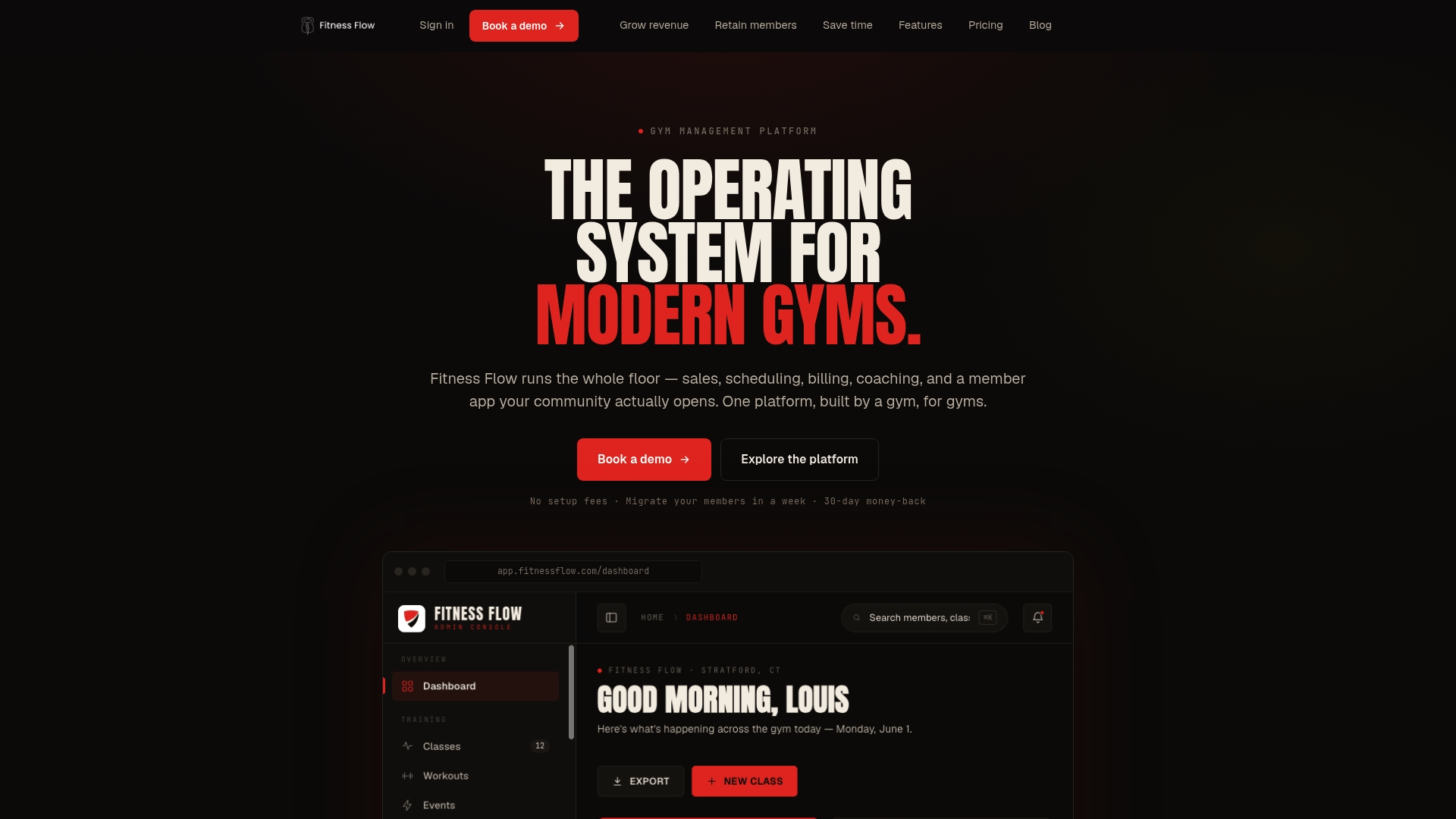
If you are moving from another system, migration support is part of how we onboard, and our write-up on setting up a gym CRM in 1 to 3 hours shows what a first session looks like.
A short checklist before you go live
- Confirm which calendars sync two ways and which one way.
- Test a booking, a reschedule and a cancellation end to end.
- Check a class across two time zones.
- Name every synced calendar clearly, and delete unused ones.
- Set roles so staff manage only what they should.
- Tell members how to add classes to their own calendar.
- Review sync settings whenever you add a location or a new instructor.
FAQ
Does a gym calendar sync work with Google Calendar and Outlook?
Most gym and studio platforms support Google Calendar and Outlook, and many also support Apple Calendar through iCal. The direction of sync can differ by calendar, so ask which are two-way and which are one-way before you rely on blocking availability.
Why do my gym’s events show up twice in my calendar?
The usual cause is more than one synced calendar pointing at the same schedule, often from reconnecting after a problem. Remove the unused duplicates, rename the one you keep, and give the sync some time before you change anything again.
Can members add classes to their own calendars?
Yes, when the booking system offers an add-to-calendar option or a calendar feed. The best versions include the instructor, room and cancellation link in the event, and update the event if the class changes.
Who should be able to edit instructor calendars?
Instructors should manage their own connections. Give front desk or admin staff a defined role if they need to help, and keep owner-level views for reporting across locations. Avoid sharing logins.
Sources
- Sync with Apple, Google and Outlook calendars: setup, two-way behavior and troubleshooting
- How to prevent overbooked tee times