

How to Sell and Manage Family Memberships at Your Gym

Modern gym management software can fully support family membership plans, and the single configuration that makes them work is shared billing tied to member roles. Get that pairing right and everything else, from booking controls to auto-renewals, falls into place. Miss it and you’ll spend hours untangling billing disputes and failed auto-pays.
Here’s what that means operationally:
- Shared billing setup: One master payer covers charges for all linked profiles in a household. The platform generates a billing preview so staff can verify what each renewal will cost before it processes.
- Member roles and permissions: A Family Manager role controls bookings, purchases, and profile edits for dependents. Dependents get scoped access based on age and plan rules.
- Profile switching: Members and staff need a clean way to switch between household profiles inside the app for bookings and check-in.
The 30/60/90 rollout plan below walks through every launch step. Joinfitnessflow is the recommended platform for this implementation, covering every requirement in this guide.
Key Takeaways
Shared billing tied to member roles is the foundation of every functional family membership plan. Get that configuration right first, then build everything else on top of it.
PointDetails
Verify the feature set first
Confirm shared billing, member roles, profile switching, and accounting exports before configuring anything.
Subscription eligibility is a hidden trap
Families above the base family size may lose auto-renew eligibility; test every household size in sandbox before launch.
Run the 30/60/90 plan
Configure in days 1–30, beta test and train staff in days 31–60, launch publicly with promotions in days 61–90.
Track ARPH and billing health
Monitor average revenue per household and failed auto-pay rate weekly for the first 30 days post-launch.
Joinfitnessflow covers every requirement
The platform handles shared billing, member roles, membership sharing, and reporting in one connected system.
Table of Contents
- What features does gym software need to support family memberships?
- How do you configure family plans step by step?
- How does billing work for family plans, and what does accounting need?
- What do daily operations look like for family memberships?
- Which KPIs should you track for family membership plans?
- How do you roll out family memberships in 30, 60, and 90 days?
- How does Joinfitnessflow cover every family membership requirement?
- What gym operators get wrong about family membership rollouts
- Joinfitnessflow makes family plan setup faster than building it yourself
- Sources
- FAQ
What features does gym software need to support family memberships?
Family membership plans for gyms require a specific feature set. Before you configure anything, verify your platform covers all of these.
Member roles and profile switching
The platform must support at least two distinct roles: a Family Manager and a Dependent. The Family Manager books classes, makes purchases, and edits profiles for linked dependents. Dependents get access scoped to their membership level, with age-based restrictions applied automatically. In the consumer app, profile switching should be a single tap, not a logout-and-login cycle.
Shared billing and household pricing
One-payer-per-household logic means a single tokenized card on file covers all charges for linked profiles. The platform should display a billing preview on the master account showing every child charge before it processes. Household pricing typically works in two modes: fixed family pricing (one flat rate regardless of size) or flexible family mode (a base family size, such as 2 adults and 2 children, with configurable add-on pricing for additional members).
A critical rule to know: recurring family subscriptions are only eligible when the signed-up family matches the base family price exactly. If a household adds members beyond the base configuration, the platform may flag the plan as ineligible for auto-renew. Test this edge case before launch.
Membership sharing and access controls
Membership sharing lets one profile purchase a membership that dependents can use for class bookings. The platform should enforce membership-level access controls so a youth membership doesn’t unlock adult-only classes. Family account setups typically let the primary user manage dependent profiles and enable or disable membership sharing per plan.
Payment processing and integrations
Confirm the platform supports:
- Tokenized card-on-file for the master payer
- Proration when members are added or removed mid-cycle
- Refund handling at the household level
- Accounting exports (CSV, QuickBooks, or Xero)
- Waiver and compliance tracking for minor dependents
- POS integration for front-desk signups
A gym management software comparison is a useful starting point for mapping these features against your current platform.
How do you configure family plans step by step?
Follow this sequence to avoid the configuration errors that break billing or lock members out of classes.
- Define the membership product. Set the base family size, choose fixed or flexible pricing mode, and enter add-on prices for members above the base.
- Create member roles. Build a Family Manager role with permissions for booking, purchasing, and editing dependent profiles. Build a Dependent role with scoped permissions.
- Enable shared billing. Turn on master-payer relationships, link the master account to dependent profiles, and run a billing preview to confirm charges appear correctly.
- Set subscription eligibility rules. Document the base family price threshold. Configure the platform to warn staff when a household exceeds base size and becomes ineligible for auto-renew.
- Configure booking and access controls. Apply age-based restrictions to classes, enable or restrict membership sharing per plan, and set booking limits per household if needed.
- Run sandbox tests. Create test families at, below, and above base size. Validate auto-renew, proration on mid-cycle additions, and checkout flows for each scenario.
- Document the setup. Write a one-page SOP covering link/unlink steps, billing preview access, and how to resolve failed auto-pays. Staff need this before launch.
Pro Tip: Test card updates and renewals in sandbox mode before going live. A card-on-file that works for a single member may behave differently when it’s the master payer for four linked profiles.
How does billing work for family plans, and what does accounting need?
The platform bills the household through the master payer’s card on file. A single invoice covers all linked profiles, though some platforms can split invoices per profile if your accounting team needs that separation.
Subscription eligibility is the most misunderstood billing rule. When a family signs up at the base family price, auto-renew works normally. Add a member that pushes the household above the base configuration and the plan may lose subscription eligibility entirely, requiring manual renewal. Build a staff checklist for this scenario.
Proration applies when members join or leave mid-cycle. Set a clear default policy before launch: either prorate to the day or charge a full period. Inconsistent handling is the fastest way to generate billing disputes.
For accounting, track these at the household level:
- Accounts receivable by household ID
- Charges mapped to the correct GL account for family plan revenue
- Refunds and chargebacks attributed to the household, not individual profiles
- Transaction fees for recurring payments, separated from one-time charges
Pro Tip: Use the platform’s billing preview report as a pre-close reconciliation tool. Export it weekly and cross-reference against your accounting system to catch discrepancies before they compound.
For gyms using web-based checkout, subscription website build patterns show how tokenized card flows and subscription management can be structured outside a native platform UI.
What do daily operations look like for family memberships?
Front-desk staff handle most of the friction when family plans go live. Prepare them for these scenarios.
Profile switching at check-in: When a parent books a class for a child, the booking appears under the dependent’s profile. Staff scanning at the door need to know which profile to look for. A clear roster view that shows the household name alongside the dependent’s name reduces confusion.
Booking for dependents: Family manager setups let one account book classes for multiple household members. Confirm the platform supports simultaneous bookings for family members attending the same class at the same time slot.
Waiver and consent handling: Minors require a guardian signature on liability waivers. The platform should capture this digitally during signup and store it against the dependent’s profile, not the master account.
Common front-desk scripts:
- Adding a dependent: “I’ll link the new profile to your master account. You’ll see the updated billing preview before the next renewal.”
- Failed auto-pay: “Your card on file was declined. I can update it here and reprocess the renewal, or you can update it in the app under billing settings.”
- Removing a dependent: “I’ll unlink the profile now. Proration will apply to this billing cycle based on our standard policy.”
Pro Tip: Print a one-page quick reference for the front desk covering the four most common tasks: linking a dependent, updating the master payer’s card, running a billing preview, and granting membership access. Laminate it and keep it at the check-in station.
Which KPIs should you track for family membership plans?
Monitor these metrics from day one. They tell you whether the plan is working financially and operationally.
Revenue metrics:
- Average revenue per household (ARPH)
- Membership AR segmented by household vs. individual plans
- Top family plans by active membership count
Conversion and retention:
- Family signup conversion rate vs. individual signup rate
- Trial-to-paid conversion for family flows
- Churn rate segmented by membership type at 30, 90, and 180 days
Utilization:
- Class attendance by household
- Shared membership usage rate
- Peak-period family attendance (useful for capacity planning)
Billing health:
- Failed auto-pay rate by household
- Card update rate after a declined charge
- Refunds and chargebacks by household
MetricWhy it matters
Average revenue per household
Shows whether family pricing is generating more revenue per account than individual plans
Churn at 90 days
Families who leave before 90 days usually signal an onboarding or billing friction problem
Failed auto-pay rate
High rates indicate card-on-file issues or subscription eligibility misconfigurations
Shared membership usage
Low usage suggests members don’t understand the benefit, which is a retention risk
How do you roll out family memberships in 30, 60, and 90 days?
Days 1–30: Build and configure
- Finalize pricing tiers (fixed vs. flexible, add-on rates).
- Configure membership types, member roles, and shared billing in the platform.
- Write the staff SOP and one-page quick reference.
- Run sandbox tests for all family size scenarios.
Days 31–60: Closed beta and training
- Invite 10–20 existing members to test the family plan.
- Fix any configuration edge cases surfaced during beta.
- Run a one-hour staff training workshop with sandbox exercises (link/unlink, billing preview, resolve failed auto-pay).
- Prepare member-facing copy: FAQ blurb, email announcement, and app push notification draft.
Days 61–90: Public launch and optimization
- Launch publicly with a promotional offer (first month at a reduced add-on rate, or a referral incentive).
- Monitor KPIs weekly for the first 30 days post-launch.
- Collect member feedback and adjust pricing or access rules based on what you find.
- Use referral program tactics to drive family signups through existing members.
For the launch announcement, a short email template works well:
Pair the announcement with a targeted gym SEO strategy to drive organic traffic to your family membership landing page. For family signup lead generation, paid social targeting parents in your zip code is a fast complement to organic search.
How does Joinfitnessflow cover every family membership requirement?
Joinfitnessflow maps directly to the feature checklist in this guide. Here’s how the platform covers each requirement:
- Member roles and profile switching: Joinfitnessflow’s member management module supports Family Manager and Dependent roles with configurable permissions and in-app profile switching on iOS, Android, and web.
- Shared billing and household pricing: The billing module supports master-payer relationships, billing preview at the household level, and both fixed and flexible family pricing modes.
- Membership sharing: Membership assignment rules let one profile share access across dependents, with class-level access controls applied per membership tier.
- Accounting exports: The platform exports transaction data in formats compatible with standard accounting workflows, and the reporting dashboard surfaces household-level AR and billing health metrics.
- Integrations: Joinfitnessflow connects to payment processors with tokenized card-on-file support and includes waiver and compliance tracking for minor dependents.
Implementation callout: Set the base family size and subscription eligibility threshold first, before enabling shared billing. This prevents the auto-renew eligibility issue from appearing mid-launch.
Migration tip: When importing existing linked-member data, map household IDs before import to avoid creating duplicate accounts for members who already have individual profiles.
Pro Tip: Use Joinfitnessflow’s sandbox or preview mode to run every family size scenario before going live. The billing preview calculator will surface subscription eligibility warnings before they become member-facing problems.
What gym operators get wrong about family membership rollouts
The most common failure isn’t pricing. It’s launching without testing the subscription eligibility edge cases first. A gym sets up a beautiful family plan, prices it well, trains the staff, and then discovers on day two that every household with more than two kids is ineligible for auto-renew because the platform’s base family configuration was never adjusted. The renewals fail silently, the members don’t know, and the front desk spends a week manually reprocessing payments.
The fix is straightforward: run sandbox tests for every family size scenario before launch, use the billing preview calculator to confirm what each renewal will charge, and document the base family price threshold in the staff SOP. That one hour of testing prevents days of cleanup.
The Fitness Flow blog covers operational pitfalls and implementation guidance in depth. It’s worth bookmarking for the rollout and post-launch phases.
Joinfitnessflow makes family plan setup faster than building it yourself
Independent and mid-sized gyms that try to patch family billing together across separate tools, a payment processor here, a spreadsheet there, end up with reconciliation problems and member frustration. Joinfitnessflow gives you one platform with shared billing, member roles, booking controls, and reporting dashboards already connected.
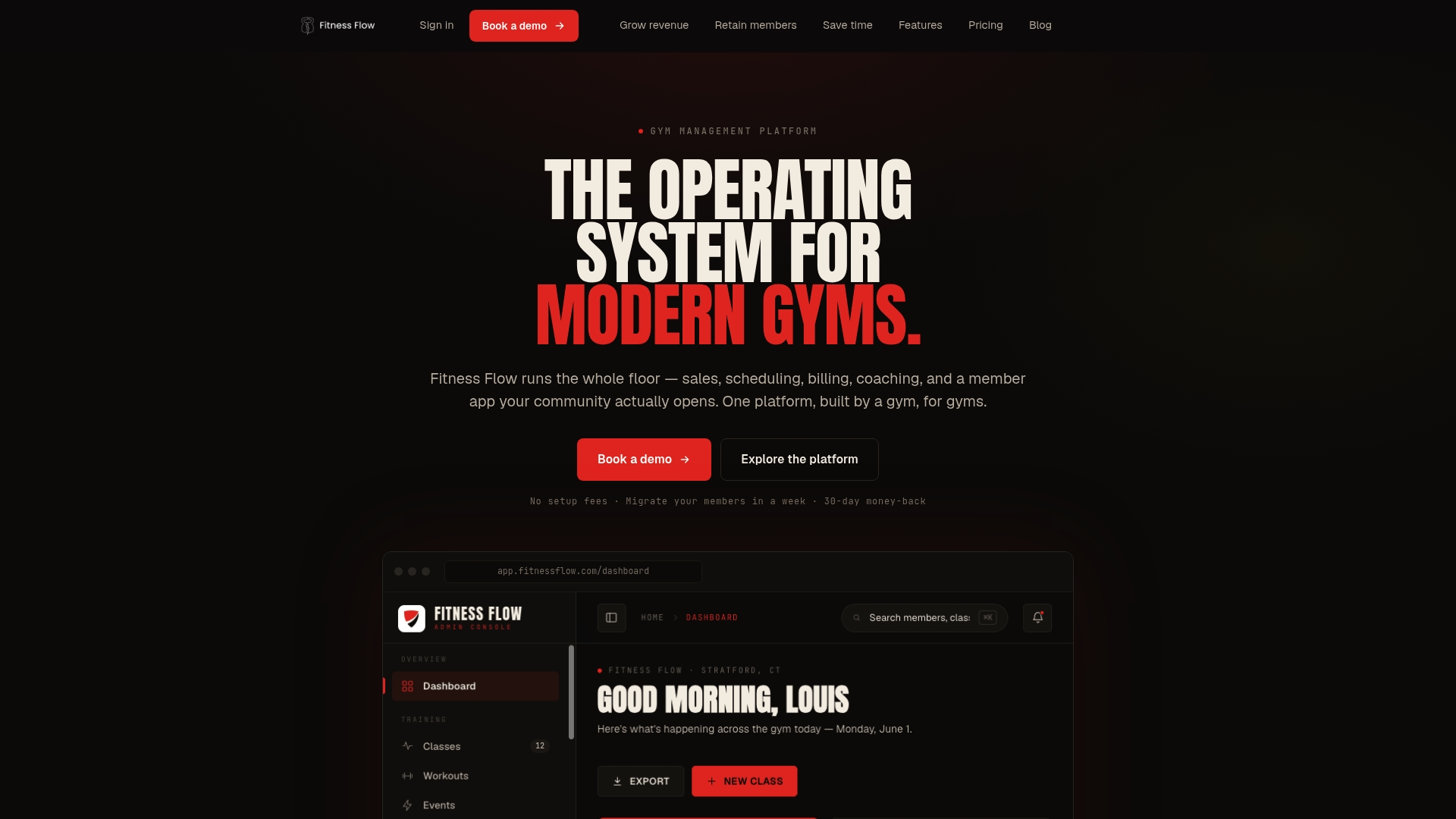
The demo includes a walkthrough of the family membership configuration, sandbox testing support, and a review of your current setup to identify gaps before you go live. You get:
- Shared billing and household pricing configured in one place
- Member roles and profile switching ready out of the box
- Reporting dashboards tracking ARPH, churn, and billing health from day one
Book a demo at Joinfitnessflow and ask specifically about family plan setup support. The team can walk you through the base family size configuration and subscription eligibility settings in the first session.
Sources
- Race Auto Cave – Subscription Website and WooCommerce System - MonsterWP
FAQ
What software features are required for gym family memberships?
The core requirements are shared billing with a master-payer relationship, Family Manager and Dependent member roles, in-app profile switching, and membership-level access controls. Accounting exports and waiver tracking for minors are also necessary for most gyms.
Why do family plan auto-renewals sometimes fail?
Auto-renew eligibility depends on whether the household’s signed-up price matches the base family price in the platform configuration. When a family adds members beyond the base size, the plan may become ineligible for subscription billing and require manual renewal.
How long does it take to launch family memberships?
A 30/60/90 rollout is realistic for most independent gyms: configuration and sandbox testing in the first 30 days, closed beta and staff training in days 31–60, and public launch with promotions in days 61–90.
Can Joinfitnessflow handle family membership billing and reporting?
Yes. Joinfitnessflow supports shared billing, household pricing, member roles, and reporting dashboards that track average revenue per household and billing health metrics from a single platform.
How should gyms handle waivers for dependent members?
Liability waivers for minors require a guardian signature, which the platform should capture digitally during signup and store against the dependent’s profile. Confirm the platform links the waiver to the dependent, not only the master account, so it’s accessible during check-in.